Parking is simple:
1. Drive to our parking lot. Directions can be found here. A diagram of the parking lot can be found here.
2. Park your car in one of the numbered spots. Numbered spots 1-18 are located along the south side of the lot AND a new parking area with spaces numbered 19-40 is located on the lot in front of Performance Athletics. An overflow area is also indicated on the parking lot diagram. If all 40 spaces are taken, park in the overflow area. Do not park in the overflow area unless ALL 40 numbered spots are occupied. Parking is restricted to the spaces described above. You cannot park anywhere you wish. Parking outside of the designated spaces will subject you to immediate towing. Park at your own risk. Please secure valuables in an out-of-view location and lock your doors. We are not responsible for any loss or damage.
3. The simplest and most convenient way to pay is to pay after you are on site and parked. Trying to pay in advance does not work! Paying for parking takes about two minutes if you are familiar with the app and have used our facility before. If not, allow 5 minutes for your first time parking. The rate is $12.50/calendar day.
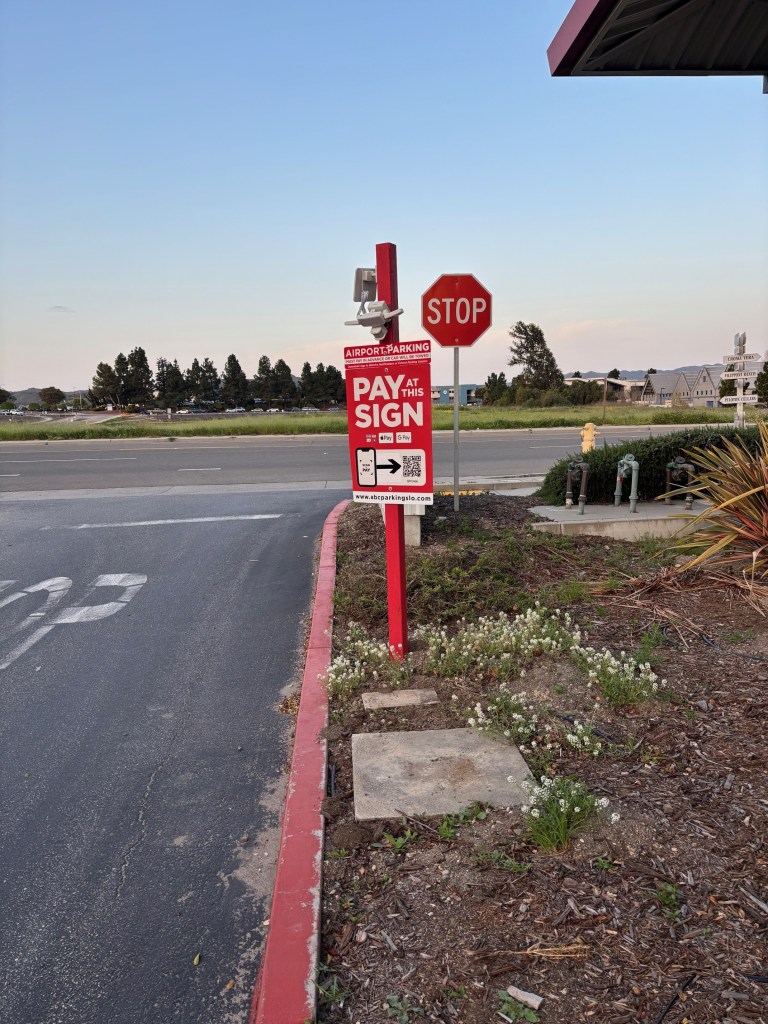
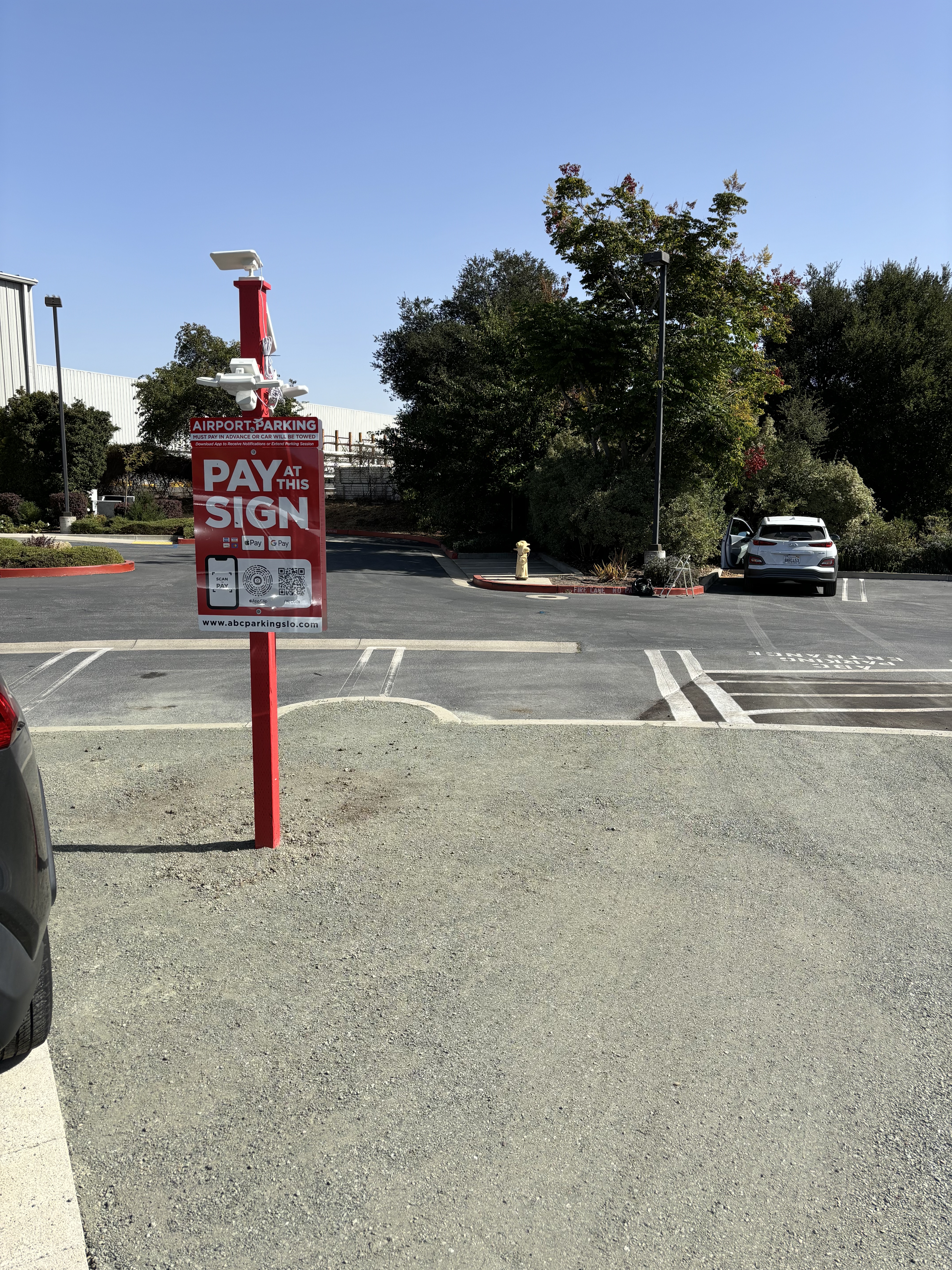
4. After parking, walk to one of the “Pay at this Sign” signs located at the entrance/exit of the lot or on the pad with spaces 19-40. The first picture below shows the sign at the entrance and the second shows the sign on the parking pad.
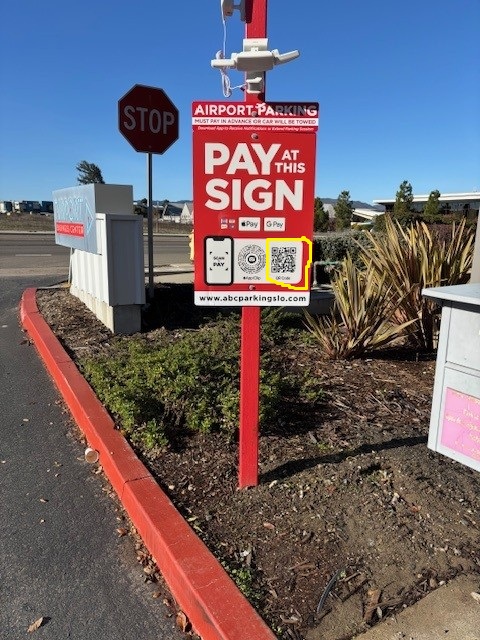
5. Once you are at the sign, turn on the camera on your phone and point it at the QR code on the sign. See image below.
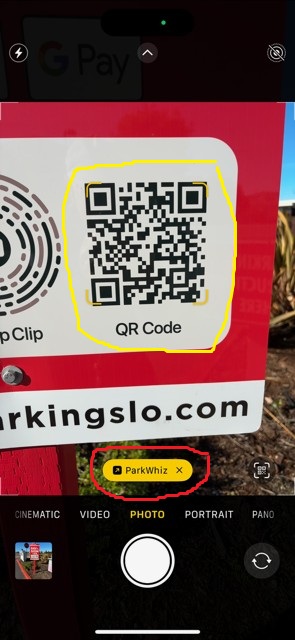
6. That will automatically take you to the ParkWhiz app and your phone will display what you see below. Touch the yellow “ParkWhiz” popup and it will take you to the next screen at 7 below.
7. After touching the yellow ParkWhiz, your phone will now display the following. Touch on the “Edit End Time” and you will now see the screen shown in 8 below. If you are having difficulty getting to the page below, DELETE the app from your phone and start over at step #5 above.
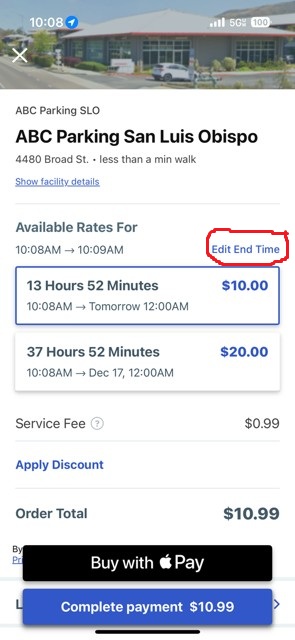
8. Your phone now shows the screen below. It will display “Today” and the current time. Touch “Today” and scroll until it displays the day, date AND time that you intend to return. The time is important. Do not pick 12:00 am as your return time as that will result in a faulty payment calculation. An example of the follow up screen is shown at 9 below.
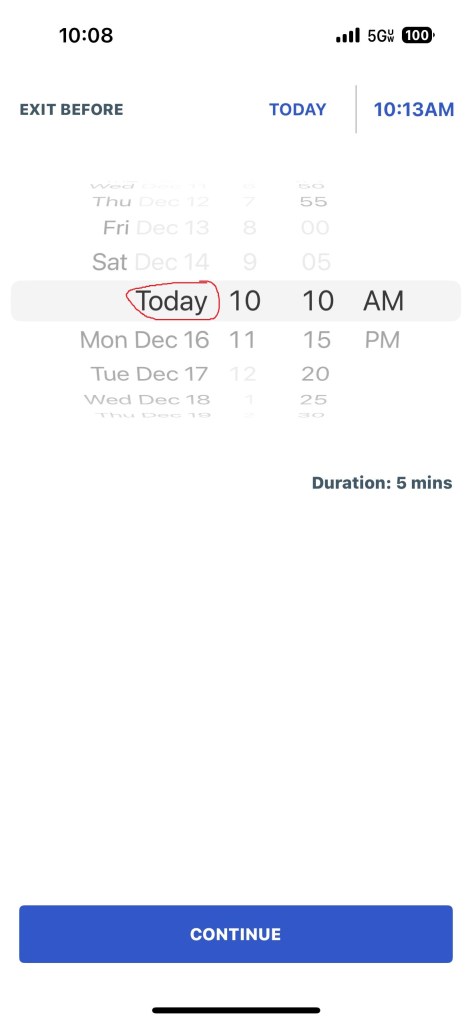
9. The screen should now display your return date. After properly selecting the return date, touch on the “Continue” button at the bottom of the screen. That will display 10 below.
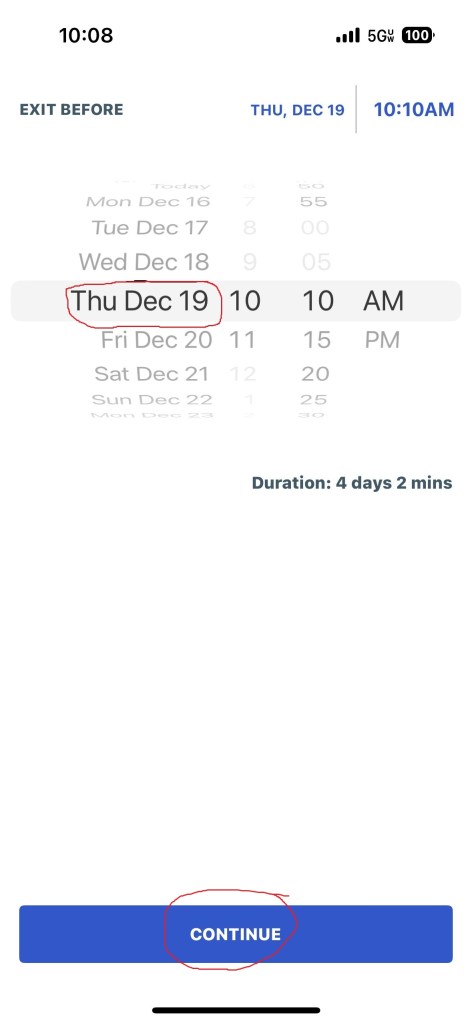
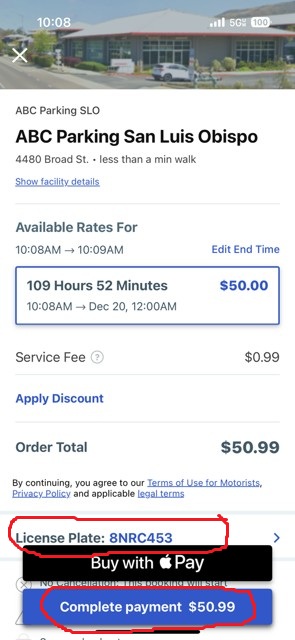
10. Now it is time to pay! On the screen you are now looking at, make sure you enter your car’s license plate number. THIS IS ESSENTIAL! The only way management can confirm that your car has been paid for is for us to match your plate with our computer printout of active payments for the day. If your license plate number is incorrect, you could be subject to towing. At this point you can choose to either pay with Apple pay or Google Pay (If you are using an android, as the example below is for an iPhone), or you can select “Complete Payment” and it will take you to number 11 below.
11. At this screen you are able to enter a credit card number if you do not have Apple Pay or Google pay. Just fill in the fields then click “Add Payment” at the bottom. That should complete the payment process.

Here is a link to our most frequently asked questions.
12. if you need to extend your parking, you must do this prior to the expiration of your initial prepaid parking period. Do as follows:
A. Go to the ParkWhiz App and open it up. It will show the following:
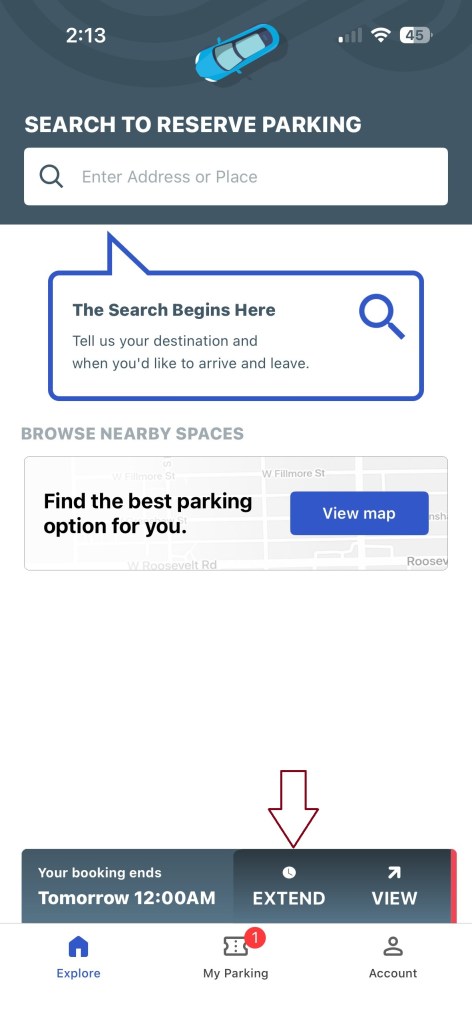
B. Tap on the “Extend” button and you will get this:
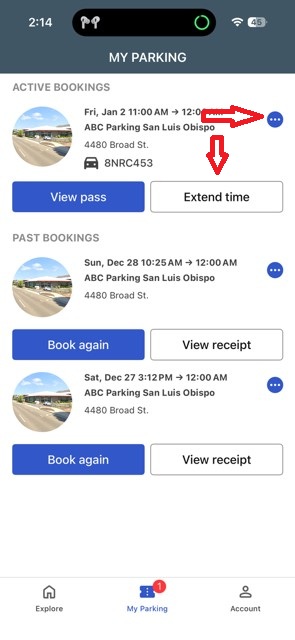
C. Tap on the “Extend time” button or on the three dots. The “Extend time” button will take you directly to where you want to go and show the following:
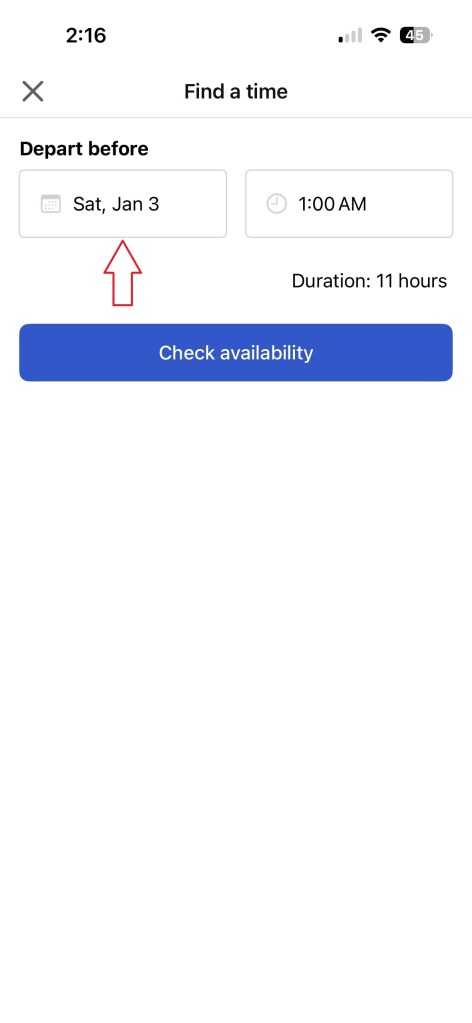
D. Tap on the date and a calendar will show up as follows:
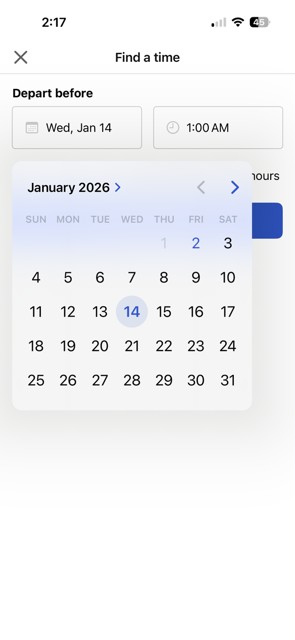
E. The following screen will appear.
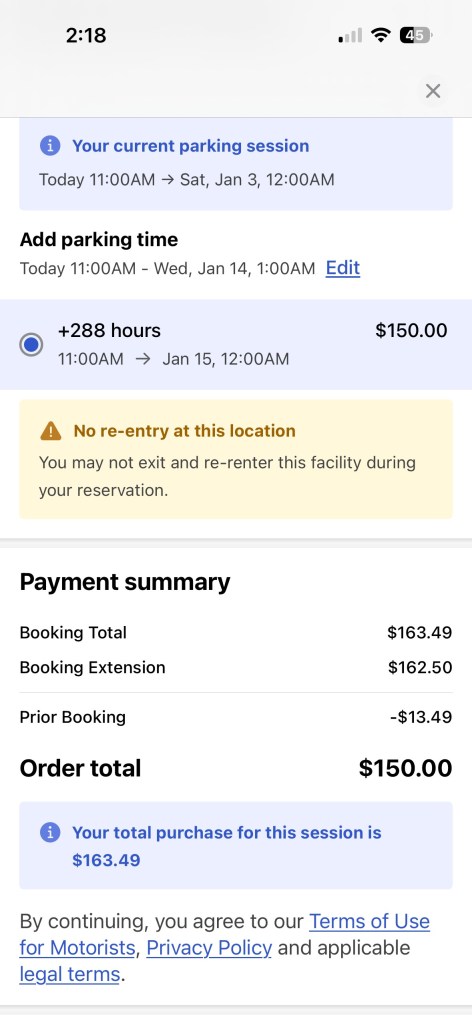
F. Scroll down to pay:
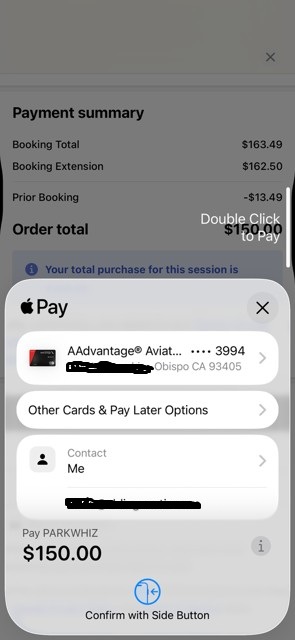
G. Pay and you are done extending! If you pick the “Three Dots” on the upper right, you can also get there. It will show the following:
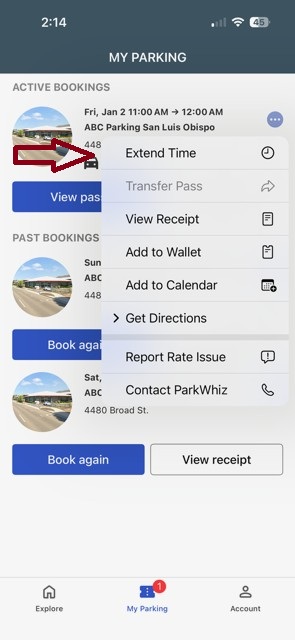
This will then let you pick “Extend Time” and you will see what is shown in “C” above!
13. Instructions for an alternative to the pay on site method are given below. If you failed to pay on site, this method has been verified to work with an iPhone using the Safari browser. It WILL NOT work using Chrome. Mozilla and other browsers have not been verified.
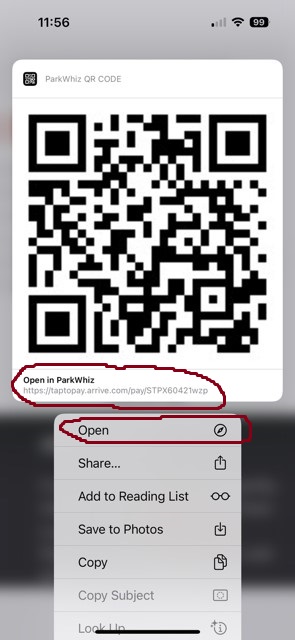
Open Safari and go to “abcparkingslo.com”. Select the “Instructions” tab. Scroll down to this #13 on that page. Touch the and HOLD the ParkWhiz QR Code below to be taken to the App.

Once the app opens on your phone, click on the “Open in ParkWhiz” line below the QR code or click on “Open” on the drop down menu. (Marked in RED on the image below) This will take you directly to our sign-in page to pay.
Once you open the App, it will take you to the following page. Use the Edit End Time tab and continue to book tabs to complete your booking.

Once you have entered that information, you must also enter your vehicle license number. See image below.

Continue to follow the instructions that pop up to complete your payment!
FINALLY! If you are unable to successfully navigate the ParkWhiz App, we strongly suggest that you do not park at ABC Parking. The only way we can be sure that your parking has been paid for is if you have the correct time period and license plate number in the app. Do not try contacting ParkWhiz directly as they cannot help you with your parking issues. If you are questioning whether you successfully used the app and paid for parking, please email us at FSVSLDC@gmail.com with your license number, day that you parked, make and model of your car. No car is towed if a timely inquiry has been made through this email.
 ABC Parking SLO